| dist | ||
| LICENSE | ||
| package.json | ||
| README.md | ||





Description
Planby PRO is a React based component for a quick implementation of schedules, timelines, EPG, live streaming, music events and many more ideas. It uses a custom virtual view which allows you to operate on a really big number of data. The component has a simple API that you can easily integrate with other third party UI libraries. The component theme is customized to the needs of the application design.
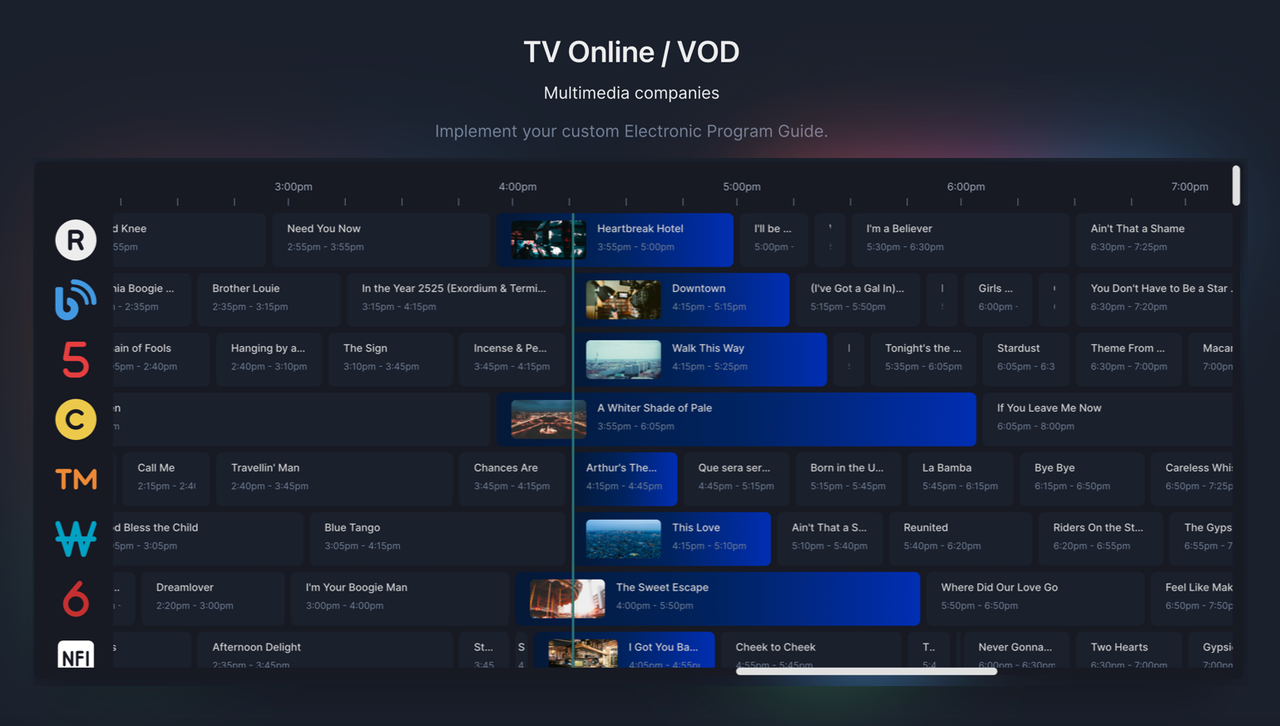
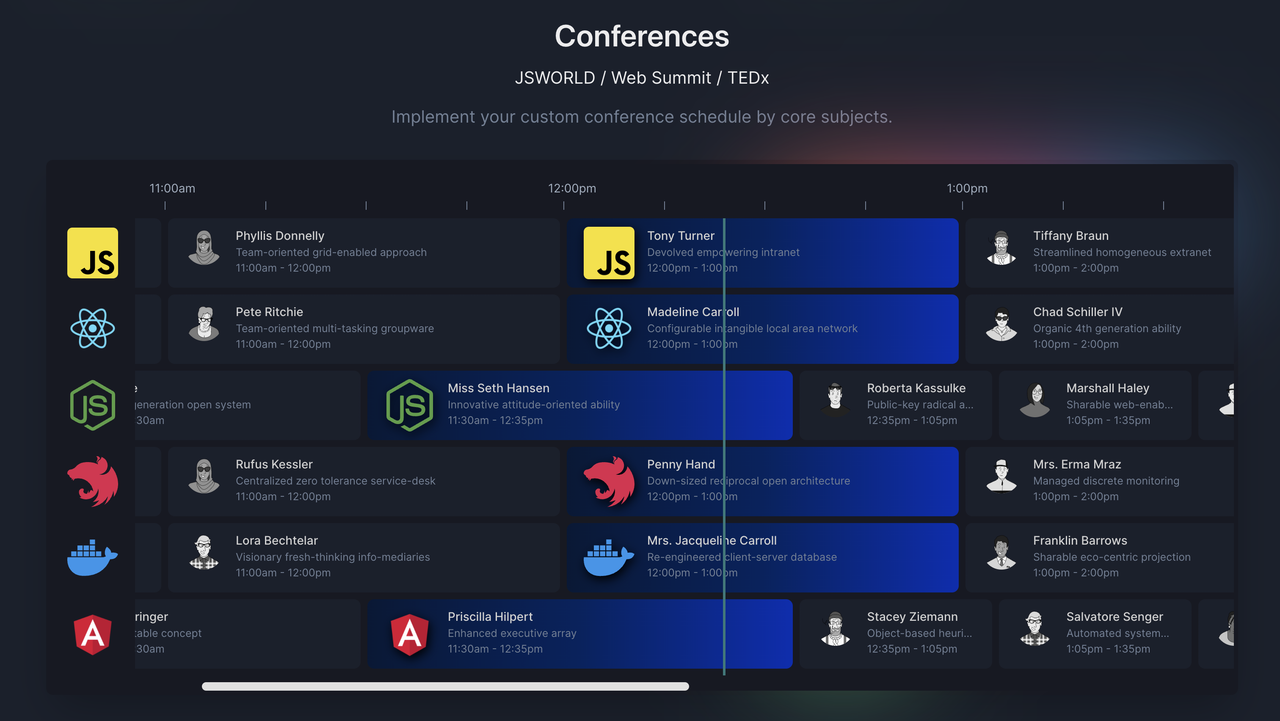
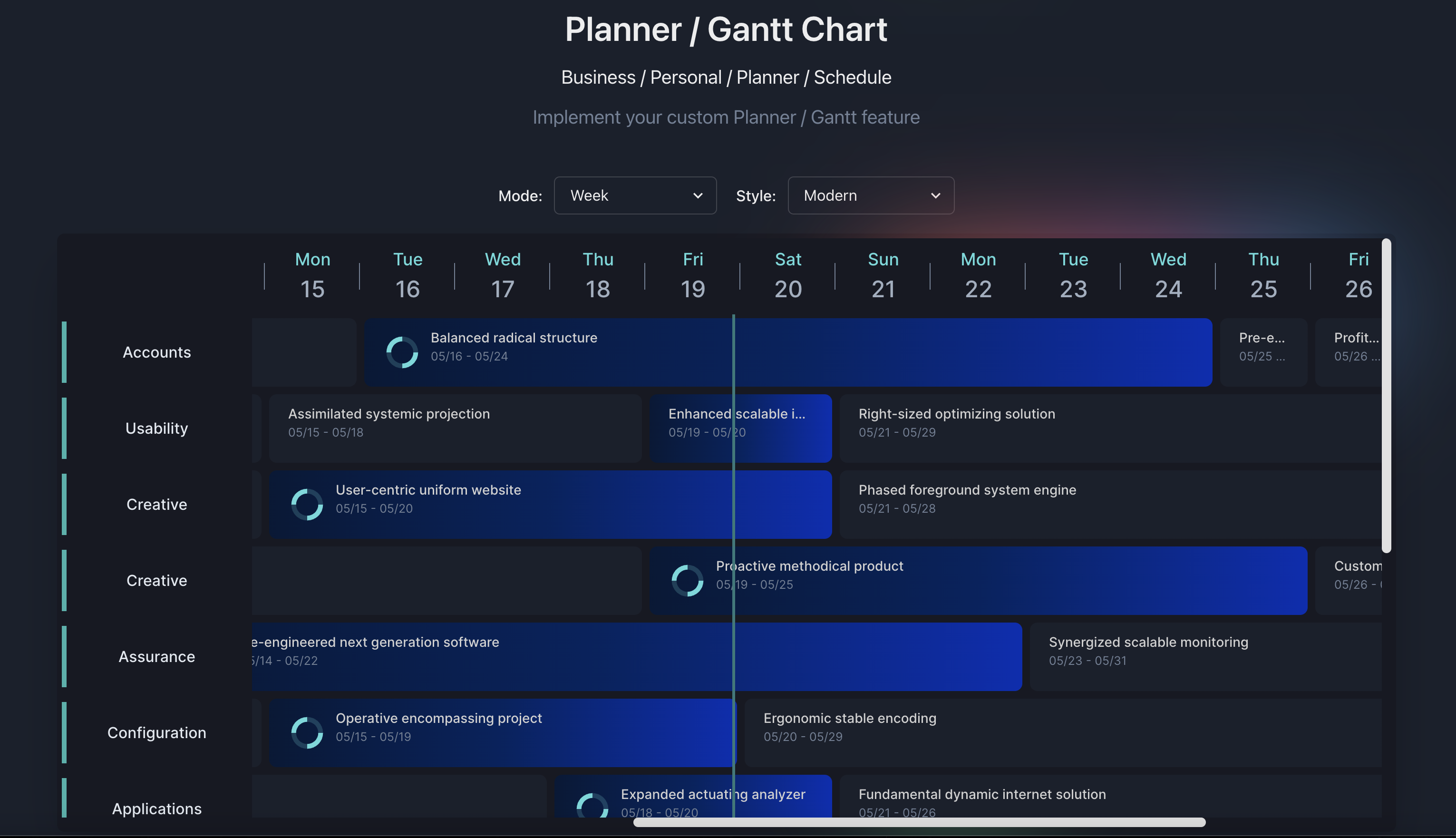

Download example
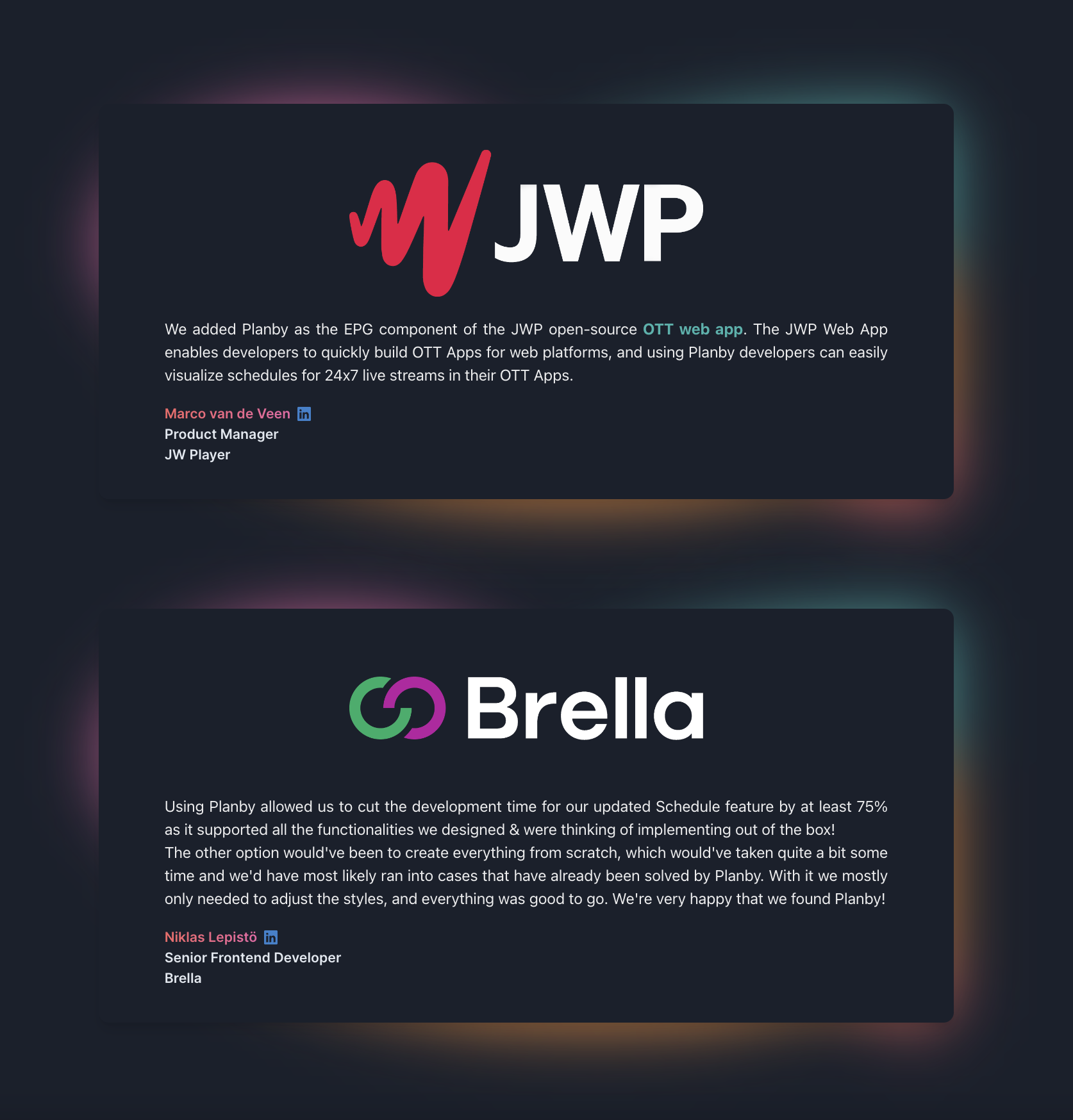
Testimonials

Getting Started
Planby PRO version has a number of major updates so please read documentation about eg. render components, theme, styles, Typescript support.
Option 1
Login to npm registry with the Github account with your username and personal access token (classic) - read:packages.
npm login --registry=https://npm.pkg.github.com --scope=@nessprim
> Username: USERNAME
> Password: TOKEN
In the same directory as your package.json file, create or edit an .npmrc file to include a line specifying GitHub Packages URL
@nessprim:registry=https://npm.pkg.github.com
Option 2
To your per-user authenticate by adding your personal access token (classic) to your ~/.npmrc file, edit the ~/.npmrc file for your project to include the following line, replacing TOKEN with your personal access token (classic).
//npm.pkg.github.com/:_authToken=TOKEN
In the same directory as your package.json file, create or edit an .npmrc file to include a line specifying GitHub Packages URL
@nessprim:registry=https://npm.pkg.github.com
Option 3
In the same directory as your package.json file, create or edit an .npmrc file to include a line specifying GitHub Packages URL and your personal access token (classic)
@nessprim:registry=https://npm.pkg.github.com
//npm.pkg.github.com/:_authToken=TOKEN
Installation
Specify the version which you want to install.
- yarn
yarn add @nessprim/planby-pro
- npm
npm install @nessprim/planby-pro
Usage
import { useEpg, Epg, Layout } from '@nessprim/planby-pro';

const channels = React.useMemo(
  () => [
    {
      logo: 'https://via.placeholder.com',
      uuid: '10339a4b-7c48-40ab-abad-f3bcaf95d9fa',
      ...
    },
  ],
  []
);

const epg = React.useMemo(
  () => [
    {
      channelUuid: '30f5ff1c-1346-480a-8047-a999dd908c1e',
      description:
        'Ut anim nisi consequat minim deserunt...',
      id: 'b67ccaa3-3dd2-4121-8256-33dbddc7f0e6',
      image: 'https://via.placeholder.com',
      since: "2022-02-02T23:50:00",
      till: "2022-02-02T00:55:00",
      title: 'Title',
      ...
    },
  ],
  []
);

const {
  getEpgProps,
  getLayoutProps,
  onScrollToNow,
  onScrollLeft,
  onScrollRight,
} = useEpg({
  epg,
  channels,
  startDate: '2022/02/02', // or 2022-02-02T00:00:00
});

return (
  <div>
    <div style={{ height: '600px', width: '1200px' }}>
      <Epg {...getEpgProps()}>
        <Layout
          {...getLayoutProps()}
        />
      </Epg>
    </div>
  </div>
);
or
Custom width and height
const {
  getEpgProps,
  getLayoutProps,
  ...
} = useEpg({
  epg,
  channels,
 startDate: '2022/02/02', // or 2022-02-02T00:00:00
  width: 1200,
  height: 600
});

return (
  <div>
     <Epg {...getEpgProps()}>
        <Layout
          {...getLayoutProps()}
        />
      </Epg>
  </div>
or
Time range
const {
  getEpgProps,
  getLayoutProps,
  ...
} = useEpg({
  epg,
  channels,
  startDate: '2022-02-02T10:00:00',
  endDate: '2022-02-02T20:00:00',
  width: 1200,
  height: 600
});

return (
  <div>
     <Epg {...getEpgProps()}>
        <Layout
          {...getLayoutProps()}
        />
      </Epg>
  </div>
Week mode
const epg = React.useMemo(
  () => [
    {
      channelUuid: '30f5ff1c-1346-480a-8047-a999dd908c1e',
      description:
        'Ut anim nisi consequat minim deserunt...',
      id: 'b67ccaa3-3dd2-4121-8256-33dbddc7f0e6',
      image: 'https://via.placeholder.com',
      since: "2023-05-01T00:00:00",
      till: "2023-05-03T24:00:00",
      title: 'Title',
      ...
    },
  ],
  []
);

const {
  getEpgProps,
  getLayoutProps,
  ...
} = useEpg({
  epg,
  channels,
  startDate: '2023-05-01T00:00:00', // Required day with time 00:00:00
  endDate: '2023-05-25T00:00:00', // Required day with time 00:00:00
  mode: {type: 'week', style: 'modern'}
  ...
});

...
Month mode
const epg = React.useMemo(
  () => [
    {
      channelUuid: '30f5ff1c-1346-480a-8047-a999dd908c1e',
      description:
        'Ut anim nisi consequat minim deserunt...',
      id: 'b67ccaa3-3dd2-4121-8256-33dbddc7f0e6',
      image: 'https://via.placeholder.com',
      since: "2023-05-01T00:00:00",
      till: "2023-08-31T24:00:00",
      title: 'Title',
      ...
    },
  ],
  []
);

const {
  getEpgProps,
  getLayoutProps,
  ...
} = useEpg({
  epg,
  channels,
  startDate: '2023-05-01T00:00:00', // First day of the month with required time 00:00:00
  endDate: '2023-11-30T00:00:00', // Last day of the month with required time 00:00:00
  mode: {type: 'month', style: 'modern'}
  ...
});

...
API
useEpg
Options
Available options in useEpg
| Property | Type | Status | Description | Access |
|---|---|---|---|---|
channels |
array |
required | Array with channels data | |
epg |
array |
required | Array with EPG data | |
width |
number |
optional | EPG width | |
height |
number |
optional | EPG height | |
sidebarWidth |
number |
optional | Width of the sidebar with channels | |
timelineHeight |
number |
optional | Height of the timeline | PRO |
itemHeight |
number |
optional | Height of channels and programs in the EPG. Default value is 80 | |
dayWidth |
number |
optional | Width of the day. Default value is 7200. Calculation to set up day width with own hour width value e.g., 24h * 300px (your custom hour width) = 7200px -> dayWidth |
|
startDate |
string |
optional | Date format 2022/02/02 or 2022-02-02T00:00:00. You can set your own start time, e.g., 2022-02-02T10:00:00, 2022-02-02T14:00:00, etc. Full clock hours only |
|
endDate |
string |
optional | Date format 2022-02-02T00:00:00, 2022-02-02T20:00:00, etc. Must be within the same 24-hour period as startDate. Full clock hours only. Scroll through multiple days and timeline mode is available only in PRO plan. |
PRO |
timelineDividers |
number |
optional | Set own dividers to Timeline and Grid bg. Default value is 4. |
PRO |
hoursInDays |
array |
optional | Set start time and end time of each day in multiple days feature if your data for each day has some time spaces between items in the day. Read more |
PRO |
initialScrollPositions |
object |
optional | Set initial scroll position in Layout, e.g., initialScrollPositions: { top: 500, left: 800 } |
PRO |
liveRefreshTime |
number |
optional | Live refresh time of the events. Default value is 120 sec. | PRO |
isBaseTimeFormat |
boolean |
optional | Convert to 12-hour format, e.g., 2:00am, 4:00pm, etc. Default value is false. |
|
isCurrentTime |
boolean |
optional | Show current time in Timeline. Default value is false. | PRO |
isInitialScrollToNow |
boolean |
optional | Scroll to the current live element. | PRO |
isVerticalMode |
boolean |
optional | Show Timeline in vertical view. Default value is false. | PRO |
isResize |
boolean |
optional | Possibility to resize the element. | PRO |
isSidebar |
boolean |
optional | Show/hide sidebar | |
isTimeline |
boolean |
optional | Show/hide timeline | |
isLine |
boolean |
optional | Show/hide line | |
isRTL |
boolean |
optional | Change direction to RTL or LTR. Default value is false. | PRO |
theme |
object |
optional | Object with theme schema Read more | |
timezone |
object |
optional | Convert and display data from UTC format to your own time zone Read more | PRO |
areas |
array |
optional | Area gives possibilities to add field ranges to the Timeline layout. Read more | PRO |
mode |
object |
optional | Type values: day/week/month. Style values: default/modern Define the mode and style of the timeline. Default mode is day and style is default Read more |
PRO |
overlap |
object |
optional | Enable the element overlaps in the layout. Mode values: stack/layer, layerOverlapLevel: number Read more |
PRO |
dnd - drag and drop |
object |
optional | Drag and move the element in the layout. Mode values: row/multi-rows Read more |
PRO |
snap - dnd snapping |
object |
optional | Activate the snap option to facilitate Drag and Drop (DnD) or resize operations, ensuring alignment with specified snap values. Example value: snap:{x: 50, y: 75} |
PRO |
grid layout |
object |
optional | Background grid on the layout. Mode hoverHighlight values: true/false, onGridItemClick: function with all the properties on clicked item grid, onGridItemDrop: function with all the properties on drop item grid Read more |
PRO |
channelMapKey |
string |
optional | The Channel uuid attribute can be controlled by prop. Key map gives a possibilities to use specific prop from own data instead of needing to map to uuid in own data |
PRO |
programChannelMapKey |
string |
optional | The Programs channelUuid attributes can be controlled by prop. Key map gives a possibilities to use a specific prop from own data instead of needing to map to channelUuid in your data |
PRO |
globalStyles |
string |
optional | Inject custom global styles and font. Font weight: 400,500,600. Default font is "Inter" | PRO |
Note about width and height props
Without declaring the width and length properties, the component takes the dimensions of the parent element.
Timezone
Convert and display data from UTC format to your own time zone
Timezone schema
| Property | Type | Status | Values |
|---|---|---|---|
enabled |
boolean |
required | |
mode |
string |
required | utc |
zone |
string |
required | Specify your timezone eg. Europe/Paris, America/New_York. Please make user your timezone value is correct |
Areas
Areas fields gives possibilities to add info ranges to the Timeline layout.
Area schema
| Property | Type | Status |
|---|---|---|
startDate |
string |
required |
endDate |
string |
optional |
styles |
CSSProperties |
required |
onClick |
function |
optional |
annotations |
object |
optional |
Annotations schema
| Property | Type | Status |
|---|---|---|
textStart |
string |
optional |
textEnd |
string |
optional |
styles |
CSSProperties |
required |
Example:
[
  {
    startDate: '2023-05-05T00:00:00',
    endDate: '2023-05-08T00:00:00',
    styles: {
      background: '#00800012',
      borderLeft: '2px dotted #38A169',
      borderRight: '2px dotted #38A169',
    },
    onClick: () => alert('Click on area'),
    annotations: {
      styles: {
        background: '#38A169',
        color: 'white',
      },
      textStart: 'Testing Start',
      textEnd: 'Testing End',
    },
  },
  {
    startDate: '2023-05-14T00:00:00',
    endDate: '2023-05-17T00:00:00',
    styles: {
      borderLeft: '2px dotted #D69E2E',
      borderRight: '2px dotted #D69E2E',
    },
    annotations: {
      styles: {
        background: '#D69E2E',
        color: 'white',
      },
      textStart: 'Testing2 Start',
      textEnd: 'Testing2 End',
    },
  },
  {
    startDate: '2023-05-11T00:00:00',
    styles: {
      borderLeft: '2px dotted #C53030',
    },
    annotations: {
      styles: {
        background: '#C53030',
        color: 'white',
      },
      textStart: 'Release',
    },
  },
];
Week and Month mode
Mode schema
| Property | Type | Status | Values |
|---|---|---|---|
type |
string |
optional | day/week/month |
style |
string |
optional | default/modern |
Month mode
| Property | Description |
|---|---|
startDate |
You have to set the first day of the month with start time of the day 00:00:00 eg. 2023-05-01T00:00:00 |
endDate |
You have to set the last day of the month with start time of the day 00:00:00 eg.2023-11-30T00:00:00 |
Week mode
| Property | Description |
|---|---|
startDate |
You have to set the first day of the month with start time of the day 00:00:00 eg. 2023-05-01T00:00:00 |
endDate |
You have to set the first day of the month with start time of the day 00:00:00 eg.2023-05-20T00:00:00 |
Week / Month EPG Item
| Property | Description |
|---|---|
since |
You have to set the start time of the day 00:00:00 eg. 2023-05-01T00:00:00 |
till |
You have to set the end time of the day 24:00:00 eg. 2023-05-09T24:00:00 |
Overlaps
Enable the element overlaps in the layout
Mode schema
| Property | Type | Description | Status |
|---|---|---|---|
enabled |
boolean |
required | |
mode |
string |
required | values: stack / layer |
layerOverlapLevel |
number |
The percentage of elements layer on top each other | required |
Drag and Drop
Enable the element overlaps in the layout
DnD schema
| Property | Type | Description | Status |
|---|---|---|---|
enabled |
boolean |
required | |
mode |
string |
required | values: row / multi-rows |
onDnDMouseUp |
function |
Callback function with custom logic to check if new since/till time meets custom requirements | optional |
onDnDSuccess |
function |
Callback function to add custom logic when drag event is successful. Return true value is custom logic is correct or 'false' value to restor initial element position in the layout |
optional |
const { getEpgProps, getLayoutProps } = useEpg({
  startDate: '2023-05-02T00:00:00',
  endDate: '2023-05-05T24:00:00',
  dnd: {
    enabled: true,
    mode: 'multi-rows',
    onDnDMouseUp: async event => {
      // Event object contains new since and till values of the dragged program
      // event = { id, since, till }
      console.log('event');
      return true; // true or false
    },
    onDnDSuccess: event => {
       // event = { channelUuid, id, index, title, description, since, till, image, channelIndex, channelPosition }
      console.log('event'),
    }
  },
});
Grid
Background grid on the layout with functionality to click on the grid item
OnClick event props schema
| Property | Type |
|---|---|
since |
string |
till |
string |
date |
string |
channelUuid |
string |
onGridItemDrop event props schema
| Property | Type |
|---|---|
since |
string |
till |
string |
date |
string |
channelUuid |
string |
And other props pass to the dragged element
Hours in Days
Set start time and end time of each day in multiple days feature if you data for each day has some time spaces between items in the day. You can set your own startDate and endDate time eg. 2023-05-02T00:00:00, 2023-05-05T24:00:00 with start time 00:00:00 and end time eg.24:00:00
Mode schema
| Property | Type | Status |
|---|---|---|
date |
string |
required |
startTimeHour |
string |
required |
endTimeHour |
string |
required |
Example:
const { getEpgProps, getLayoutProps } = useEpg({
    startDate:"2023-05-02T00:00:00",
    endDate:"2023-05-05T24:00:00",
    ...
  });

const hoursInDays = [
  {
    date: '2023-05-02',
    startTimeHour: '2023-05-02T09:00:00',
    endTimeHour: '2023-05-02T16:00:00',
  },
  {
    date: '2023-05-03',
    startTimeHour: '2023-05-03T09:00:00',
    endTimeHour: '2023-05-03T13:00:00',
  },
  {
    date: '2023-05-04',
    startTimeHour: '2023-05-04T09:00:00',
    endTimeHour: '2023-05-04T17:00:00',
  },
  {
    date: '2023-05-05',
    startTimeHour: '2023-05-05T09:00:00',
    endTimeHour: '2023-05-05T15:00:00',
  },
];
globalStyles
Inject own custom font and other global styles.
const globalStyles = `
  @import url("https://fonts.googleapis.com/css2?family=Inter:wght@400;500;600&display=swap");

/* Available in sponsors plan */
 .planby {
  font-family: "Inter", system-ui, -apple-system, "Segoe UI", Roboto, Helvetica,
    Arial, sans-serif, "Apple Color Emoji", "Segoe UI Emoji";

  /* Layout */
  .planby-layout {}
  .planby-corner-box {}

  /* Line */
  .planby-line {}

  /* Current time */
  .planby-current-time {}
  .planby-current-content {}

  /* Channels */
  .planby-channels {}

  /* Channel */
  .planby-channel {}

  /* Program */
  .planby-program {}
  .planby-program-content {}
  .planby-program-flex {}
  .planby-program-stack {}
  .planby-program-title {}
  .planby-program-text {}

  /* Timeline */
  .planby-timeline-wrapper {}
  .planby-timeline-box {}
  .planby-timeline-time {}
  .planby-timeline-dividers {}
  .planby-timeline-wrapper {}
}

`;
Instance Properties
Properties returned from useEpg
| Property | Type | Description | Access |
|---|---|---|---|
scrollY |
number |
Current scroll y value | |
scrollX |
number |
Current scroll x value | |
onScrollLeft |
function(value: number) |
Default value is 300 | |
onScrollRight |
function(value: number) |
Default value is 300 | |
onScrollToNow |
function() |
Scroll to current time/live programs | |
onScrollTop |
function(value: number) |
Default value is 300 | |
getLayoutData |
function() |
Generate and get all the layout data | PRO |
getDropItemData |
function() |
Get converted item data after external drop into grid action | PRO |
isLayoutBottom |
function(offset:number) |
Check if the layout has reached the bottom. Add an offset value to perform various actions before reaching the bottom. | PRO |
isLayoutRight |
function(offset:number) |
Check if the layout has reached the right side. Add an offset value to perform various actions before reaching the right. | PRO |
Channel schema
You can add other properties that you wish to have according to your specific requirements or functionalities you want to implement.
| Property | Type | Status | Description | Access |
|---|---|---|---|---|
logo |
string |
required | ||
uuid |
string |
required | ||
title |
string |
optional | ||
groupTree |
boolean |
optional | Set to true if the channel is the first main top channel in a group, used to display the channel group name in sidebar | PRO |
parentChannelUuid |
string |
optional | Set for nested children. Required when main channel has groupTree set to true |
PRO |
isOpen |
boolean |
optional | Used to open the channel group in the sidebar | PRO |
Epg schema
You can add other properties that you wish to have according to your specific requirements or functionalities you want to implement.
| Property | Type | Status | Description | Access |
|---|---|---|---|---|
channelUuid |
string |
required | ||
id |
string |
required | ||
image |
string |
required | ||
since |
string |
required | ||
till |
string |
required | ||
title |
string |
required | ||
fixedVisibility |
boolean |
optional | The element is always visible in the layout during the scroll events | PRO |
Epg
Base props
Available props in Epg
| Property | Type | Description | Status | Access |
|---|---|---|---|---|
isLoading |
boolean |
Loader state | optional | |
loader |
Component |
Loader custom component | optional | PRO |
Layout
Base props
Available props in Layout.
| Property | Type | Description | Status | Access |
|---|---|---|---|---|
renderProgram |
function({ program: { data: object, position: object}) |
data object contains all properties related to the program, position object includes all position styles |
optional | |
renderChannel |
function({ channel: { ..., position: object}) |
channel object contains all properties related to the channel, position object includes all position styles |
optional | |
renderTimeline |
function({sidebarWidth: number}) |
sidebarWidth value of the channel's sidebar width |
optional | |
renderGridCell |
function(object) |
render custom Grid Cell element in Layout grid | PRO |
|
renderLine |
function({styles: object}) |
basic styles and position values for the custom live tracking Line |
optional | PRO |
renderCurrentTime |
function({styles: object, isRTL: boolean, isBaseTimeFormat: boolean, time: string}) |
basic styles values for the custom current time |
optional | PRO |
onLayoutBgClick |
function() |
Possibility to click on Layout background to trigger some custom events | optional | PRO |
Render functions
You can use Planby's style components to develop main features. Moreover, you can integrate with third party UI library eg. Chakra UI, Material UI etc or make custom styles.
renderProgram
Below is an example that allows you to render your custom Program component using Plaby's style components.
import {
  useEpg,
  Epg,
  Layout,
  ProgramBox,
  ProgramContent,
  ProgramFlex,
  ProgramStack,
  ProgramTitle,
  ProgramText,
  ProgramImage,
  useProgram,
  Program,
  ProgramItem
} from "planby";


const Item = ({program,...rest }: ProgramItem) => {
  const { styles, formatTime, isLive, isMinWidth } = useProgram({program,...rest });

  const { data } = program;
  const { image, title, since, till } = data;

  const sinceTime = formatTime(since);
  const tillTime = formatTime(till);

  return (
    <ProgramBox width={styles.width} style={styles.position}>
      <ProgramContent
        width={styles.width}
        isLive={isLive}
      >
        <ProgramFlex>
          {isLive && isMinWidth && <ProgramImage src={image} alt="Preview" />}
          <ProgramStack>
            <ProgramTitle>{title}</ProgramTitle>
            <ProgramText>
              {sinceTime} - {tillTime}
            </ProgramText>
          </ProgramStack>
        </ProgramFlex>
      </ProgramContent>
    </ProgramBox>
  );
};

function App() {

  ...

 const {
  getEpgProps,
  getLayoutProps,
} = useEpg({
  epg,
  channels,
  startDate: '2022/02/02', // or 2022-02-02T00:00:00
});

return (
  <div>
    <div style={{ height: '600px', width: '1200px' }}>
      <Epg {...getEpgProps()}>
        <Layout
            {...getLayoutProps()}
            renderProgram={({ program,...rest }) => (
              <Item key={program.data.id} program={program} {...rest} />
            )}
          />
      </Epg>
    </div>
  </div>
);
}

export default App;
renderProgram - Vertical Mode
Below is an example that allows you to render your custom Program component using Planby's style components with Vertical mode.
const Item = ({isVerticalMode, program,...rest }: ProgramItem) => {
  const { styles, formatTime, isLive, isMinWidth } = useProgram({isVerticalMode, program,...rest });

...

  return (
    <ProgramBox width={styles.width} style={styles.position}>
      <ProgramContent
       isVerticalMode={isVerticalMode}
        width={styles.width}
        isLive={isLive}
      >
        <ProgramFlex isVerticalMode={isVerticalMode}>
          {isLive && isMinWidth && <ProgramImage isVerticalMode={isVerticalMode} src={image} alt="Preview" />}
          <ProgramStack>
            <ProgramTitle>{title}</ProgramTitle>
            <ProgramText>
              {sinceTime} - {tillTime}
            </ProgramText>
          </ProgramStack>
        </ProgramFlex>
      </ProgramContent>
    </ProgramBox>
  );
};
renderProgram - 12 hours time format
Below is an example that allows you to render your custom Program component with 12 hours time format using Planby's style components.
...
const Item = ({ program, ...rest }: ProgramItem) => {
  const {
    styles,
    formatTime,
    set12HoursTimeFormat,
    isLive,
    isMinWidth,
  } = useProgram({
    program,
    ...rest
  });

  const { data } = program;
  const { image, title, since, till } = data;

  const sinceTime = formatTime(since, set12HoursTimeFormat()).toLowerCase();
  const tillTime = formatTime(till, set12HoursTimeFormat()).toLowerCase();

  return (
    <ProgramBox width={styles.width} style={styles.position}>
      <ProgramContent
        width={styles.width}
        isLive={isLive}
      >
        <ProgramFlex>
          {isLive && isMinWidth && <ProgramImage src={image} alt="Preview" />}
          <ProgramStack>
            <ProgramTitle>{title}</ProgramTitle>
            <ProgramText>
              {sinceTime} - {tillTime}
            </ProgramText>
          </ProgramStack>
        </ProgramFlex>
      </ProgramContent>
    </ProgramBox>
  );
};

function App() {

  ...

 const {
  getEpgProps,
  getLayoutProps,
} = useEpg({
  epg,
  channels,
  isBaseTimeFormat: true,
  startDate: '2022/02/02', // or 2022-02-02T00:00:00
});

...
}

export default App;
renderProgram - RTL direction
Below is an example that allows you to render your custom Program component with RTL direction using Planby's style components.
...
const Item = ({ program, ...rest }: ProgramItem) => {
  const {
    isRTL,
    isLive,
    isMinWidth,
    formatTime,
    styles,
    set12HoursTimeFormat,
    getRTLSinceTime,
    getRTLTillTime,
  } = useProgram({
    program,
    ...rest
  });

  const { data } = program;
  const { image, title, since, till } = data;

  const sinceTime = formatTime(
    getRTLSinceTime(since),
    set12HoursTimeFormat()
  ).toLowerCase();
  const tillTime = formatTime(
    getRTLTillTime(till),
    set12HoursTimeFormat()
  ).toLowerCase();

  return (
    <ProgramBox width={styles.width} style={styles.position}>
      <ProgramContent width={styles.width} isLive={isLive}>
        <ProgramFlex>
          {isLive && isMinWidth && <ProgramImage src={image} alt="Preview" />}
          <ProgramStack isRTL={isRTL}>
            <ProgramTitle>{title}</ProgramTitle>
            <ProgramText>
              {sinceTime} - {tillTime}
            </ProgramText>
          </ProgramStack>
        </ProgramFlex>
      </ProgramContent>
    </ProgramBox>
  );
};

function App() {

  ...

 const {
  getEpgProps,
  getLayoutProps,
} = useEpg({
  epg,
  channels,
  isBaseTimeFormat: true,
  startDate: '2022/02/02', // or 2022-02-02T00:00:00
});

...
}

export default App;
renderGridCell
Below is an example that allows you to render your custom GridCell component using Planby's style components.
...
import { GridCell, GridItem, GridDivider } from "@nessprim/planby-pro";

export function ItemGrid(props: GridCell) {
  const {
    isDayMode,
    isHoverHighlight,
    item,
    timelineDividers,
    timelineDividerArray,
    gridDividerProps,
    gridItemClickProps,
  } = props;

  const { onItemClick, ...dividerProps } = gridDividerProps.props;
  const { left, ...styles } = gridDividerProps.styles;
  return (
    <GridItem
      isDayMode={isDayMode}
      isHoverHighlight={isHoverHighlight as boolean}
      {...item.position}
      {...gridItemClickProps}
    >
      {isDayMode &&
        timelineDividerArray.map((_, index) => (
          <GridDivider
            key={index}
            {...styles}
            {...dividerProps}
            left={left(index)}
            onClick={onItemClick(item, index)}
          />
        ))}
    </GridItem>
  );
}
renderChannel
Below is an example that allows you to render your custom Channel component using Planby's style components.
Available props in ChannelItem
| Property | Type | Description | Status |
|---|---|---|---|
isVerticalMode |
boolean |
Vertical mode | optional |
isRTL |
boolean |
RTL option mode | optional |
channel |
object |
Object contains position styles and url for logo | optional |
import {
  useEpg,
  Epg,
  Layout,
  ChannelBox,
  ChannelLogo,
  Channel,
  ChannelItem,
} from '@nessprim/planby-pro';

const CustomChannelItem = ({ channel }: ChannelItem) => {
  const { position, logo } = channel;
  return (
    <ChannelBox {...position}>
      <ChannelLogo
        onClick={() => console.log('channel', channel)}
        src={logo}
        alt="Logo"
      />
    </ChannelBox>
  );
};


function App() {

  ...

  const {
    getEpgProps,
    getLayoutProps,
  } = useEpg({
    epg,
    channels,
    startDate: '2022/02/02', // or 2022-02-02T00:00:00
  });

  return (
    <div>
      <div style={{ height: '600px', width: '1200px' }}>
        <Epg {...getEpgProps()}>
          <Layout
              {...getLayoutProps()}
              renderChannel={({ channel, ...rest }) => (
              <CustomChannelItem key={channel.uuid} channel={channel} {...rest} />
            )}
            />
        </Epg>
      </div>
    </div>
  );
}
renderChannel - Vertical Mode
Below is an example that allows you to render your custom Channel component using Planby's style components with Vertical mode.
import {
  useEpg,
  Epg,
  Layout,
  ChannelBox,
  ChannelLogo,
  Channel,
  ChannelItem,
} from '@nessprim/planby-pro';

const CustomChannelItem = ({ isVerticalMode, channel }: ChannelItem) => {
  const { position, logo } = channel;
  return (
    <ChannelBox isVerticalMode={isVerticalMode} {...position}>
      <ChannelLogo
        onClick={() => console.log('channel', channel)}
        src={logo}
        alt="Logo"
      />
    </ChannelBox>
  );
};
renderTimeline
Below is an example that allows you to render your custom Timeline component using Planby's style components.
import {
  CurrentTime,
  Timeline,
  TimelineWrapper,
  TimelineBox,
  TimelineTime,
  TimelineDivider,
  TimelineDividers,
  useTimeline,
} from '@nessprim/planby-pro';


export function CustomTimeline(props: Timeline) {
 const { time, dividers,timelineHeight, getTime, getTimelineProps, getCurrentTimeProps } =
    useTimeline(props);

  const {
    isToday,
    isBaseTimeFormat,
    isCurrentTime,
    isTimelineVisible,
    isVerticalMode,
  } = props;

  const { hourWidth } = props;

  const renderTime = (item: string | number, index: number) => {
    const { isNewDay, time } = getTime(item);
    const position = { left: hourWidth * index, width: hourWidth };
    const isVisible = isTimelineVisible(position);
    if (!isVisible) return null;
    return (
      <TimelineBox
        key={index}
        isToday={isToday}
        isCurrentTime={isCurrentTime}
        timelineHeight={timelineHeight}
        {...position}
       >
        <TimelineTime
          isNewDay={isNewDay}
          isBaseTimeFormat={isBaseTimeFormat}
        >
          {time}
        </TimelineTime>
        <TimelineDividers>{renderDividers(isNewDay)}</TimelineDividers>
      </TimelineBox>
    );
  };

 const renderDividers = (isNewDay: boolean) =>
    dividers.map((_, index) => (
      <TimelineDivider key={index} isNewDay={isNewDay} width={hourWidth} />
    ));

  return (
  <TimelineWrapper {...getTimelineProps()}>
      {isToday && isCurrentTime && <CurrentTime {...getCurrentTimeProps()} />}
      {time.map((item, index) => renderTime(item, index))}
    </TimelineWrapper>
  );
}

function App() {

  ...

  const {
    getEpgProps,
    getLayoutProps,
  } = useEpg({
    epg,
    channels,
    startDate: '2022/02/02', // or 2022-02-02T00:00:00
  });

  return (
    <div>
      <div style={{ height: '600px', width: '1200px' }}>
        <Epg {...getEpgProps()}>
          <Layout
              {...getLayoutProps()}
              renderTimeline={(props) => <CustomTimeline {...props} />}
            />
        </Epg>
      </div>
    </div>
  );
}

export default App;
renderTimeline - Different hours in multiple days
import {
  CurrentTime,
  Timeline,
  TimelineWrapper,
  TimelineBox,
  TimelineTime,
  TimelineDivider,
  TimelineDividers,
  useTimeline,
} from '@nessprim/planby-pro';

export function CustomTimeline(props: Timeline) {
 const { isTodayInHoursInDays, areHoursInDays, time, ...rest } =
    useTimeline(props);

  const { timelineHeight,  } = rest;
  const {
    getTime, getTimelineProps, getCurrentTimeProps
  } = rest;

  const {
    isToday,
    isBaseTimeFormat,
    isCurrentTime,
    isTimelineVisible,
    isVerticalMode,
  } = props;

  const { hourWidth } = props;

  const renderTime = (item: string | number, index: number) => {
    const { isNewDay, time } = getTime(item);
    const position = { left: hourWidth * index, width: hourWidth };
    const isVisible = isTimelineVisible(position);
    if (!isVisible) return null;
    return (
      <TimelineBox
        key={index}
        isToday={isToday}
        isCurrentTime={isCurrentTime}
        timelineHeight={timelineHeight}
        isTodayInHoursInDays={isTodayInHoursInDays}
        areHoursInDays={areHoursInDays}
        {...position}
       >
        <TimelineTime
          isNewDay={isNewDay}
          isBaseTimeFormat={isBaseTimeFormat}
        >
          {time}
        </TimelineTime>
        <TimelineDividers>{renderDividers(isNewDay)}</TimelineDividers>
      </TimelineBox>
    );
  };
...
renderTimeline - RTL direction
Below is an example that allows you to render your custom Timeline component using Planby's style components.
import {
  CurrentTime,
  Timeline,
  TimelineWrapper,
  TimelineBox,
  TimelineTime,
  TimelineDivider,
  TimelineDividers,
  useTimeline,
} from '@nessprim/planby-pro';


export function CustomTimeline(props: Timeline) {
const { time, dividers, getTime, getTimelineProps, getCurrentTimeProps } =
    useTimeline(props);

  const {
    isToday,
    isBaseTimeFormat,
    isCurrentTime,
    isRTL,
    isTimelineVisible,
    isVerticalMode,
  } = props;

  const { hourWidth } = props;

  const renderTime = (item: string | number, index: number) => {
    const { isNewDay, time } = getTime(item);
    const position = { left: hourWidth * index, width: hourWidth };
    const isVisible = isTimelineVisible(position);
    if (!isVisible) return null;
    return (
      <TimelineBox key={index}
      isToday={isToday}
      isCurrentTime={isCurrentTime}
      timelineHeight={timelineHeight}
      {...position}>
        <TimelineTime
          isNewDay={isNewDay}
          isBaseTimeFormat={isBaseTimeFormat}
          isRTL={isRTL}

        >
          {time}
        </TimelineTime>
        <TimelineDividers>{renderDividers(isNewDay)}</TimelineDividers>
      </TimelineBox>
    );
  };

 ...
}
renderTimeline - Week or Month mode
Below is an example that allows you to render your custom Timeline component using Planby's style components.
import {
  CurrentTime,
  Timeline,
  TimelineWrapper,
  TimelineBox,
   TimelineWeekMonthBox,
  TimelineWeekMonthDate,
  TimelineTime,
  TimelineDivider,
  TimelineDividers,
  useTimeline,
} from '@nessprim/planby-pro';


export function CustomTimeline(props: Timeline) {
const { isWeekMonthMode, isMonthMode, time, ...rest } = useTimeline(props);
  const { timelineHeight, weekDayWidth, monthsWidth, dividers } = rest;
  const {
    formatWeekMonthDate,
    getTime,
    getDayMonthName,
    getTimelineProps,
    getCurrentTimeProps,
  } = rest;

    const {
    isToday,
    isBaseTimeFormat,
    isCurrentTime,
    isRTL,
    isTimelineVisible,
    isVerticalMode,
  } = props;
  const { mode } = props;
  const { hourWidth } = props;

 const renderWeekMonth = (item: string, index: number) => {
    const width = isMonthMode ? monthsWidth[index].width : weekDayWidth;
    const left = isMonthMode ? monthsWidth[index].left : width * index;
    const position = {
      left,
      width,
    };
    const isVisible = isTimelineVisible(position);
    if (!isVisible) return null;
    const isModernStyle = mode.style === "modern";
    return (
      <TimelineWeekMonthBox
        className="planby-timeline-box"
        data-testid="timeline-item"
        key={index}
        isToday={isToday}
        isWeekMonthMode={isWeekMonthMode}
        isCurrentTime={isCurrentTime}
        isVerticalMode={isVerticalMode}
        timelineHeight={timelineHeight}
        styleType={mode.style}
        {...position}
      >
        <TimelineWeekMonthDate
          className="planby-timeline-week-month-date"
          isRTL={isRTL}
          isVerticalMode={isVerticalMode}
          styleType={mode.style}
        >
          {isModernStyle && <span>{getDayMonthName(item)}</span>}
          <span>{formatWeekMonthDate(item)}</span>
        </TimelineWeekMonthDate>
      </TimelineWeekMonthBox>
    );
  };

  return (
    <TimelineWrapper
      className="planby-timeline-wrapper"
      data-testid="timeline"
      {...getTimelineProps()}
    >
      {isCurrentTime && isToday && <CurrentTime {...getCurrentTimeProps()} />}
      {time.map((item, index) => renderWeekMonth(item as string, index))}
    </TimelineWrapper>
  );

 ...
}
renderTimeline - Vertical Mode
Below is an example that allows you to render your custom Timeline component using Planby's style components with Vertical Mode.
import {
  CurrentTime,
  Timeline,
  TimelineWrapper,
  TimelineBox,
  TimelineTime,
  TimelineDivider,
  TimelineDividers,
  useTimeline,
} from '@nessprim/planby-pro';


export function Timeline(props: Timeline) {
  const { time, dividers, getTime, getTimelineProps, getCurrentTimeProps } =
    useTimeline(props);

  const {
    isToday,
    isBaseTimeFormat,
    isCurrentTime,
    isRTL,
    isTimelineVisible,
    isVerticalMode,
  } = props;

  const { hourWidth } = props;

  const renderTime = (item: string | number, index: number) => {
    const { isNewDay, time } = getTime(item);
    const position = { left: hourWidth * index, width: hourWidth };
    const isVisible = isTimelineVisible(position);
    if (!isVisible) return null;
    return (
      <TimelineBox key={index}
        isToday={isToday}
        isCurrentTime={isCurrentTime}
        isVerticalMode={isVerticalMode}
         {...position}>
        <TimelineTime
          isNewDay={isNewDay}
          isBaseTimeFormat={isBaseTimeFormat}
          isVerticalMode={isVerticalMode}
        >
          {time}
        </TimelineTime>
        <TimelineDividers isVerticalMode={isVerticalMode}>{renderDividers(isNewDay)}</TimelineDividers>
      </TimelineBox>
    );

  };

   const renderDividers = (isNewDay: boolean) =>
    dividers.map((_, index) => (
      <TimelineDivider
        key={index}
        isNewDay={isNewDay}
        isVerticalMode={isVerticalMode}
        width={hourWidth}
      />
    ));

 ...
}
renderLine
Below is an example that allows you to render your custom Line component using Planby's style components.
Available props in Line
| Property | Type | Description | Status |
|---|---|---|---|
isVerticalMode |
boolean |
Vertical mode | optional |
isTimeline |
boolean |
Vertical mode | optional |
styles |
object |
Object contains position styles | optional |
import { Line } from '@nessprim/planby-pro';

export function CustomLine({isVerticalMode, styles }: Line) {
  return (
    <div
      style={{
        ...styles.position,
        background: "red",
        pointerEvents: "none",
      }}
    />
  );
}


function App() {

  ...

  const {
    getEpgProps,
    getLayoutProps,
  } = useEpg({
    epg,
    channels,
    startDate: '2022/02/02', // or 2022-02-02T00:00:00
  });

  return (
    <div>
      <div style={{ height: '600px', width: '1200px' }}>
        <Epg {...getEpgProps()}>
          <Layout
              {...getLayoutProps()}
               renderLine={(props) => <CustomLine {...props} />}
            />
        </Epg>
      </div>
    </div>
  );
}

export default App;
renderCurrentTime
Below is an example that allows you to render your custom CurrentTime component using Planby's style components.
import {
  CurrentTimeIndicator,
  CurrentTimeBox,
  CurrentTimeContent,
 } from '@nessprim/planby-pro';

export function CustomCurrentTime(props: CurrentTimeIndicator) {
  const { isVerticalMode, isRTL, isBaseTimeFormat } = props;
  const { time, styles } = props;

  return (
    <CurrentTimeBox {...styles.position}>
      <CurrentTimeContent
        isVerticalMode={isVerticalMode}
        isBaseTimeFormat={isBaseTimeFormat}
        isRTL={isRTL}
      >
        {time}
      </CurrentTimeContent>
    </CurrentTimeBox>
  );
}


function App() {

  ...

  const {
    getEpgProps,
    getLayoutProps,
  } = useEpg({
    epg,
    channels,
    startDate: '2022/02/02', // or 2022-02-02T00:00:00
  });

  return (
    <div>
      <div style={{ height: '600px', width: '1200px' }}>
        <Epg {...getEpgProps()}>
          <Layout
              {...getLayoutProps()}
               renderCurrentTime={(props) => <CustomCurrentTime {...props} />}
            />
        </Epg>
      </div>
    </div>
  );
}

export default App;
Theme
Schema
Make your theme custom. Below is theme schema that you can pass as one of the options to useEpg hook.
const theme = {
  primary: {
    600: '#1a202c',
    900: '#171923',
  },
  grey: { 300: '#d1d1d1' },
  white: '#fff',
  teal: {
    // Planby PRO version
    100: '#38B2AC',
  },
  green: {
    200: '#389493',
    300: '#2C7A7B',
  },
  loader: {
    teal: '#5DDADB',
    purple: '#3437A2',
    pink: '#F78EB6',
    bg: '#171923db',
  },
  scrollbar: {
    border: '#ffffff',
    thumb: {
      bg: '#e1e1e1',
    },
  },
  gradient: {
    blue: {
      300: '#002eb3',
      600: '#002360',
      900: '#051937',
    },
  },
  text: {
    grey: {
      300: '#a0aec0',
      500: '#718096',
    },
  },
  timeline: {
    divider: {
      bg: '#718096',
    },
  },
  grid: {
    // Planby PRO version
    item: '#7180961a',
    divider: '#7180961a',
    highlight: '#38B2AC',
  },
};
All import options
import {
  Epg,
  Layout,
  ChannelBox,
  ChannelLogo,
  CurrentTimeBox,
  CurrentTimeContent,
  ProgramBox,
  ProgramContent,
  ProgramFlex,
  ProgramStack,
  ProgramTitle,
  ProgramText,
  ProgramImage,
  TimelineWrapper,
  TimelineBox,
  TimelineWeekMonthBox,
  TimelineWeekMonthDate,
  TimelineTime,
  TimelineDividers,
  useEpg,
  useProgram,
  useTimeline,
  Line, // Interface
  Channel, // Interface
  CurrentTimeIndicator, // Interface
  Program, // Interface
  ProgramItem, // Interface for program render
  Timeline, // Interface for timeline render
  Theme, // Interface
} from '@nessprim/planby-pro';
License
Custom License - All Rights Reserved. See LICENSE for more information.
Contact
Karol Kozer - @kozerkarol_twitter
Project Link: https://github.com/karolkozer/planby